
Importing Books
There are two easy ways to add books to your Maktaba library: dragging files in, or using the Add Books button. Maktaba supports EPUB, PDF, DOCX (Word documents), and TXT (plain text) files.
Drag and drop
Simply drag one or more EPUB/PDF/DOCX/TXT files (or a whole folder of them) from your computer's file browser and drop them anywhere in the Maktaba window.
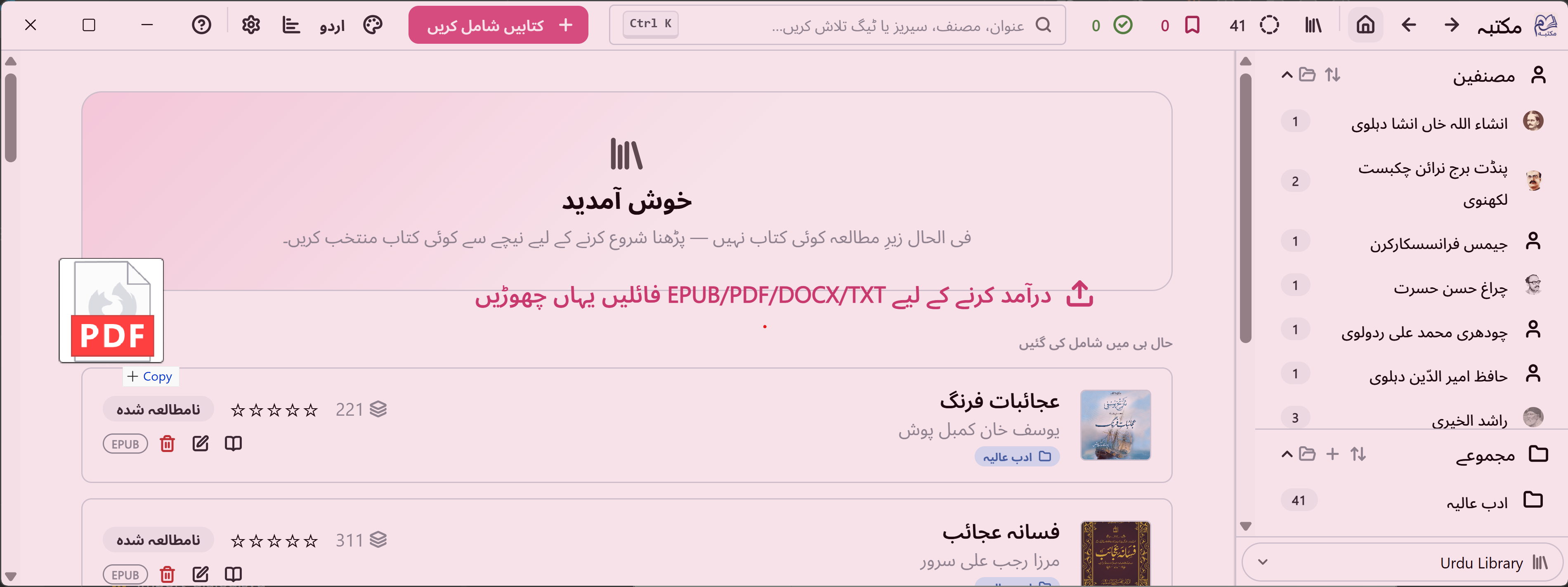
Using the Add Books button
- Click Add Books in the toolbar.
- Choose the files (or a folder) you want to add.
- Maktaba reads each book's title, author, cover, and other details automatically, and shows you a list before adding anything.
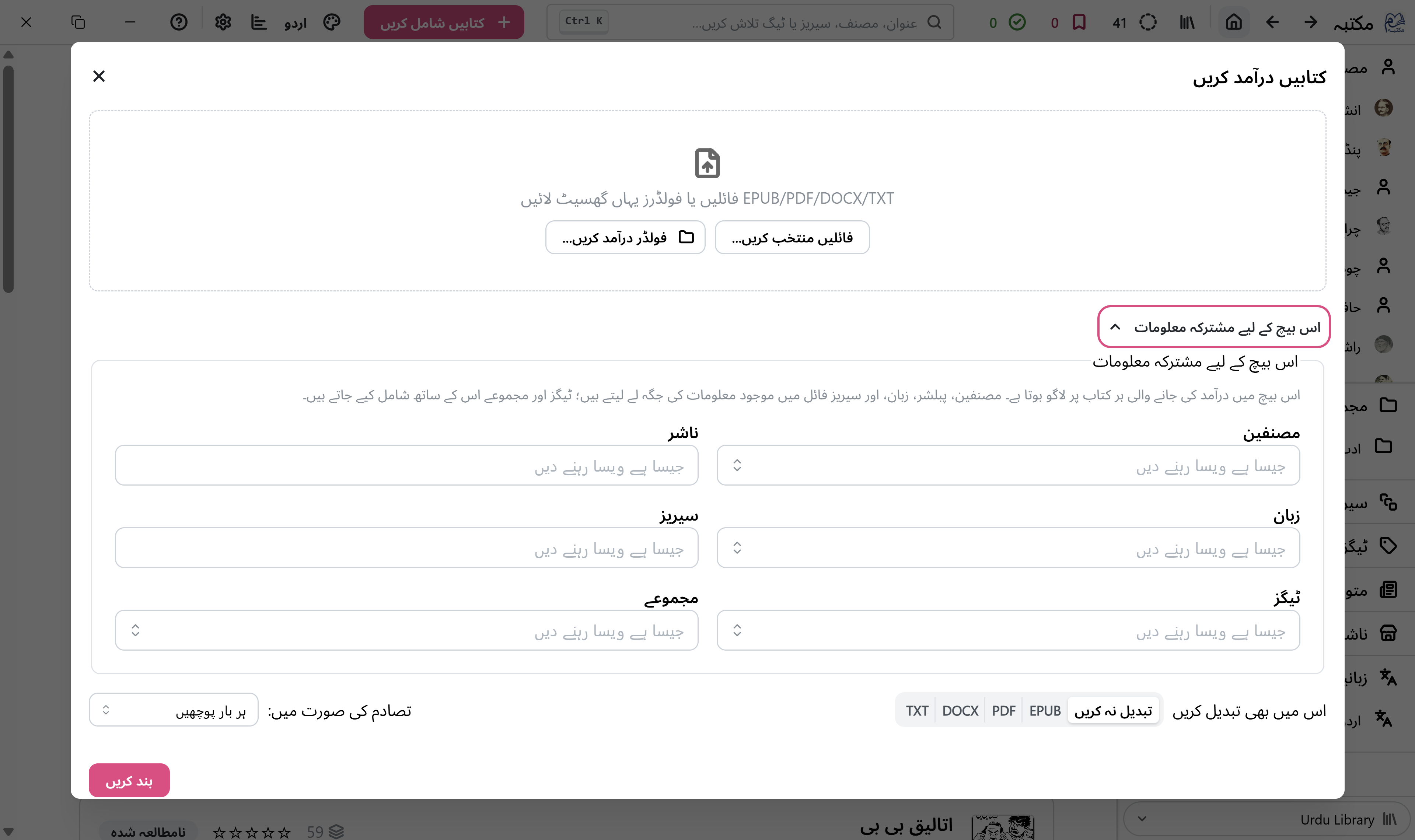
- Review the list, then click Import to add them to your library.
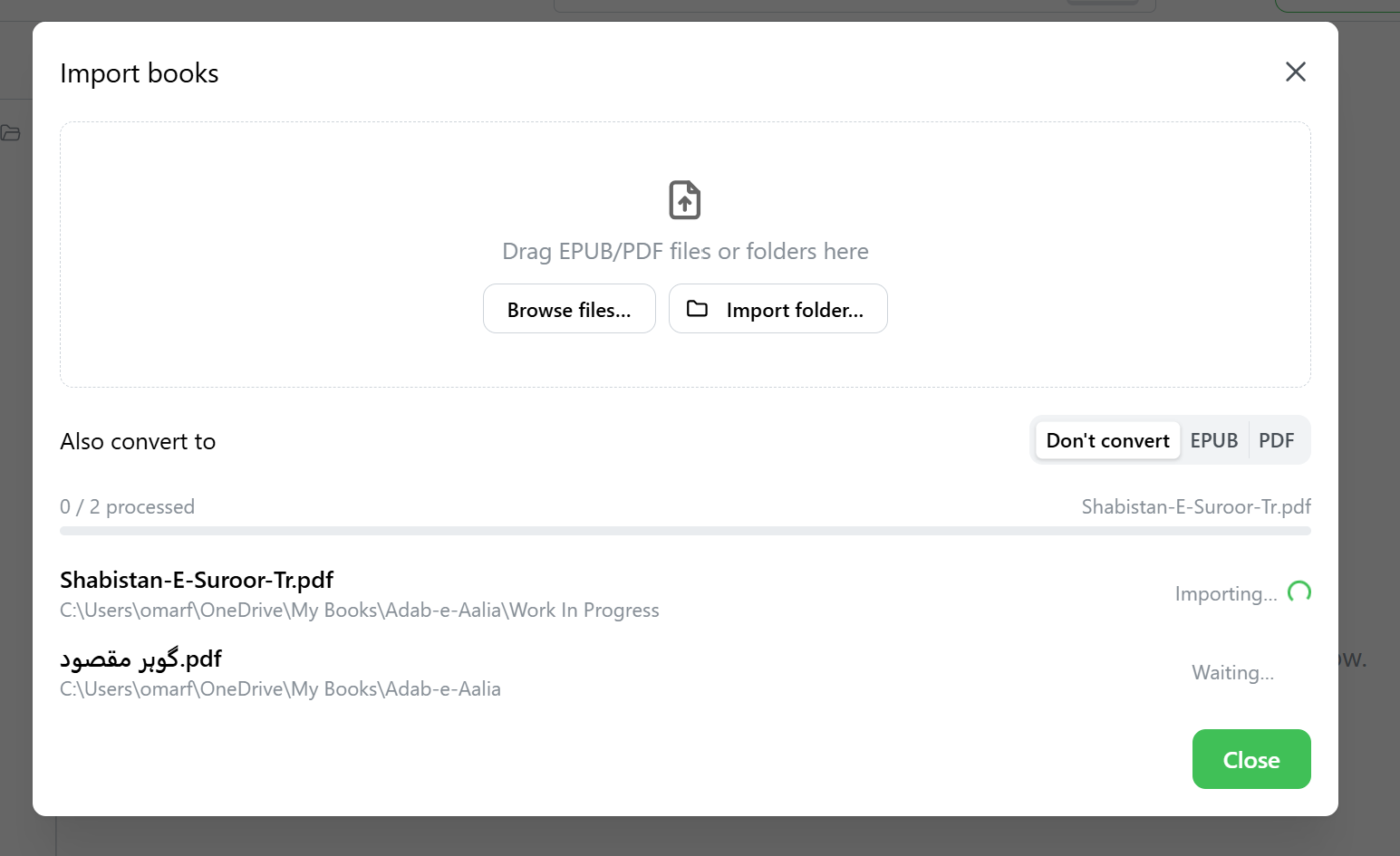
If import can results in import of duplicate books, you are prompted to select the action to be taken. You can chose to do one of following actions:
- Skip this file : File will not be imported
- Add as Another Format : File will be added to existing book in library as a different format. e.g. if a pdf of a book already added to library, the new pub file being imported is added to the same book.
- Import as New Book : Import the book as a new book. If a book with title "Moby Dick" already exists, a new book with title "Moby Dick (2)" will be added
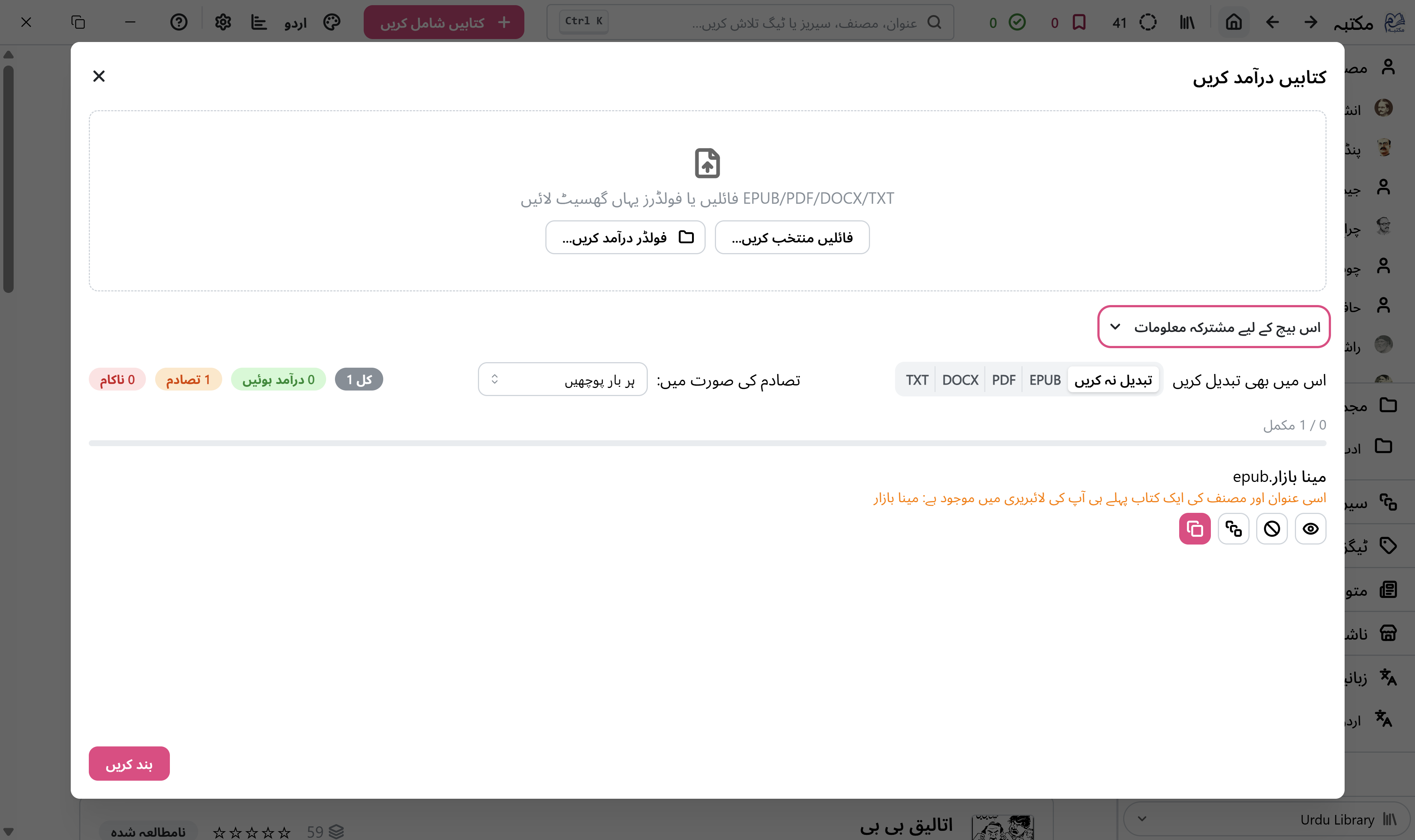
Setting common info for a batch of books
If you're importing several books at once that share something in common — the same author, the same publisher, a shared language, or a series you want tagged across all of them — open Common info for this batch just below the drop zone before the import finishes. Whatever you set there (author, publisher, language, series, tags, or collections) is applied automatically to every book in that batch as it's imported:
- Author, publisher, language, and series replace whatever was found in the file itself, since these describe a single fact about the book.
- Tags and collections are added alongside whatever the book already has, rather than replacing them.
Leave a field empty to leave that piece of information exactly as each file's own metadata (or the import process) already set it. This is especially handy for TXT files, which carry no metadata of their own — batch-tagging them with an author and language up front saves editing each one individually afterward.
What happens to the files
Maktaba copies each book into your library folder, organized automatically into an Author/Title structure — your original files, wherever they were, are left untouched.
Importing a whole folder of books at once
If you point Maktaba at a folder (either by dragging it in, or picking it with Add Books), it looks through every subfolder for ebook files too — handy if you're bringing books over from another program or an old backup that already has its own folder structure.
Tip: If a book's title, author, or cover looks wrong after importing, you can always fix it — see Organizing Your Library and Troubleshooting & FAQ.