
Choosing & Switching Libraries
A library is simply a folder on your computer that Maktaba keeps your books in. Most people only ever need one, but Maktaba supports as many as you like — useful for keeping separate collections, for example one library per family member, or a separate library for a shared folder.
Seeing all your libraries
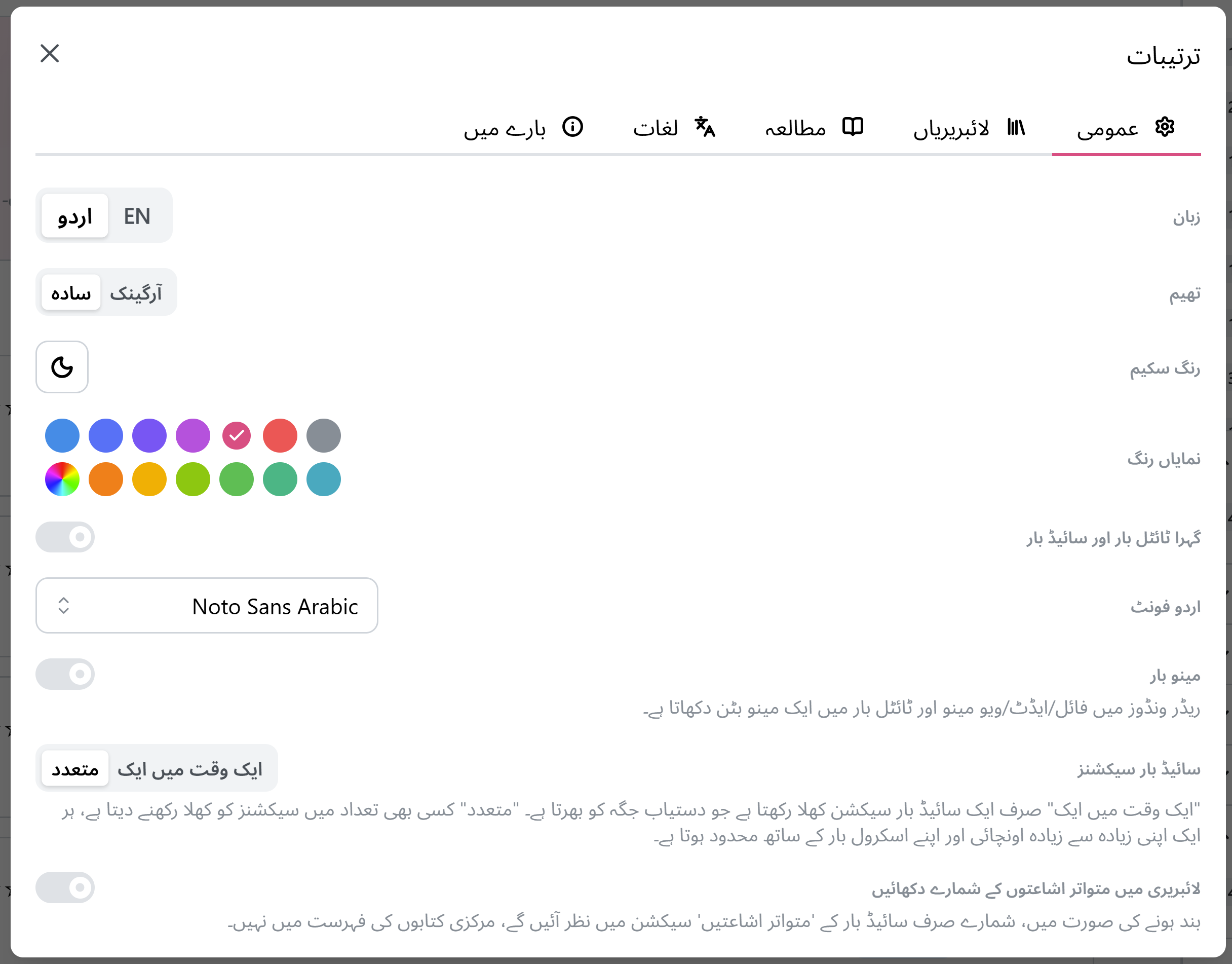
Open Settings → Libraries to see every library you've opened before, with the one currently in use marked as active.
Adding another library
Click Add Library and choose a folder, exactly like the very first time you opened Maktaba. This doesn't affect your existing library at all — it's simply added to your list.
Switching between libraries
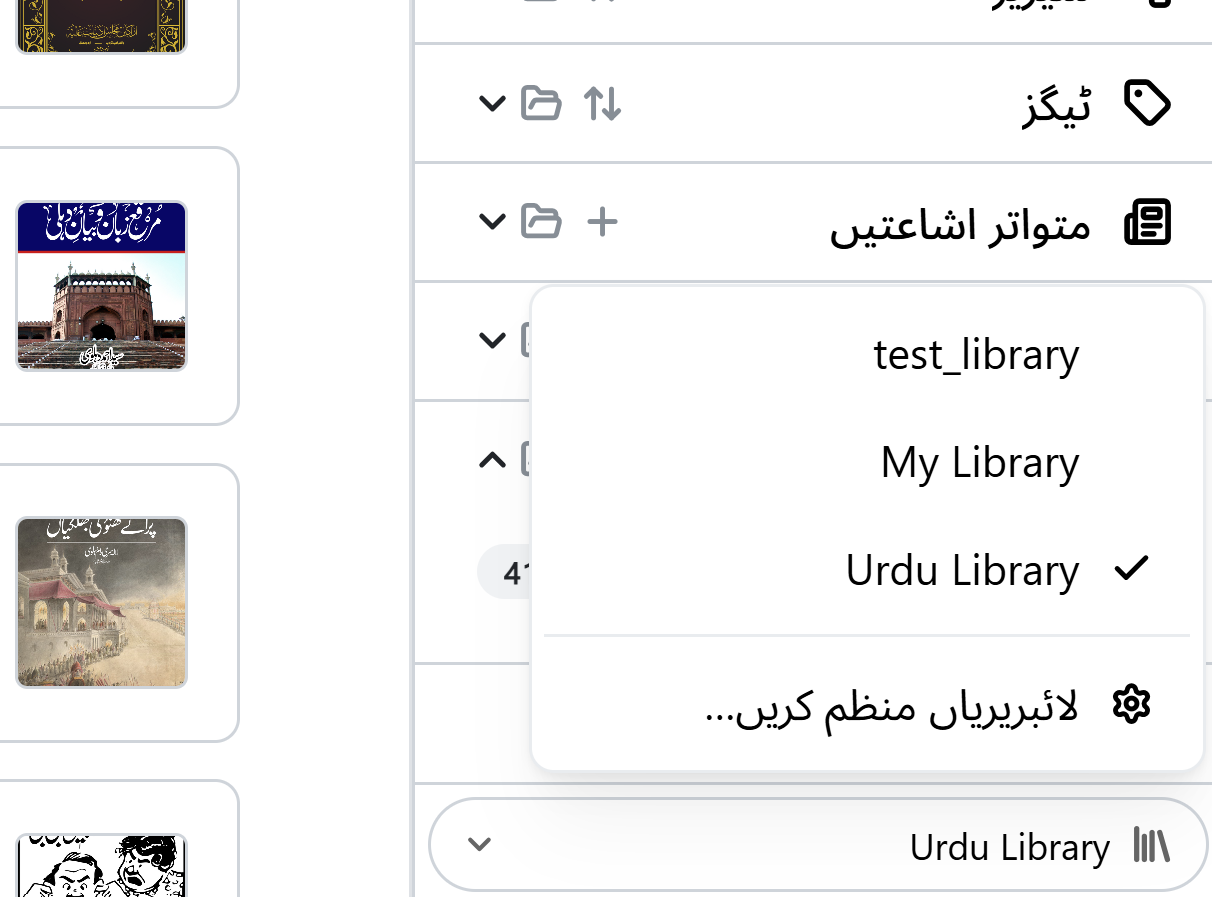
Click Switch next to any library in the list to make it the active one. Maktaba changes over immediately — no restart needed — and everything you see (your book grid, sidebar, and search) now reflects that library instead.
You can just click the Open button to switch the library as active in settings dialog or can use the quick access at the bottom of side bar.
Cloud libraries
Besides a folder on your own computer, a library can also live in cloud storage — an S3-compatible bucket, your own Google Drive, or your own OneDrive, reachable from more than one computer. See Cloud Storage for how to connect one, keep it in sync, move an existing local library into the cloud, and recover from a connection problem.
Renaming, moving, or removing a library
From the same list you can:
- Rename a library — this only changes the label Maktaba shows you, not the folder itself.
- Relocate a library — tell Maktaba the folder has moved (for example, to a new drive) without losing anything.
- Resync a library — have Maktaba look through the folder again, picking up books that were added or changed outside the app.
- Remove a library from the list — this only removes it from Maktaba; your books and folder on disk are never deleted.
Relocate is only available for a library stored on your own computer — a cloud library's location is its bucket/folder configuration instead (see Cloud libraries above). Resync works for a cloud library too, looking through its remote folder the same way - useful if a book you know is there isn't showing up yet.
Tip: Removing a library from Maktaba's list is always safe for your files. To actually delete books, delete them from within Maktaba (or from the folder itself) — removing the library just stops Maktaba from tracking that folder.